This suite of tutorials is the result of a recent Agorama Server Co-op workshop day. They cover how to set up a Raspberry Pi, how to use an Ansible playbook to easily get a Pi set up as a server, and how to run Homebase on a Raspberry server.
Introduction
Mise en scène
For almost all of the tutorials below, you’ll need: a computer, a Raspberry Pi, a power supply for your Pi (read more), an SD card appropriate to your requirements (read more), and an SD card reader. You may also find an ethernet cable useful if your Pi has an ethernet port.
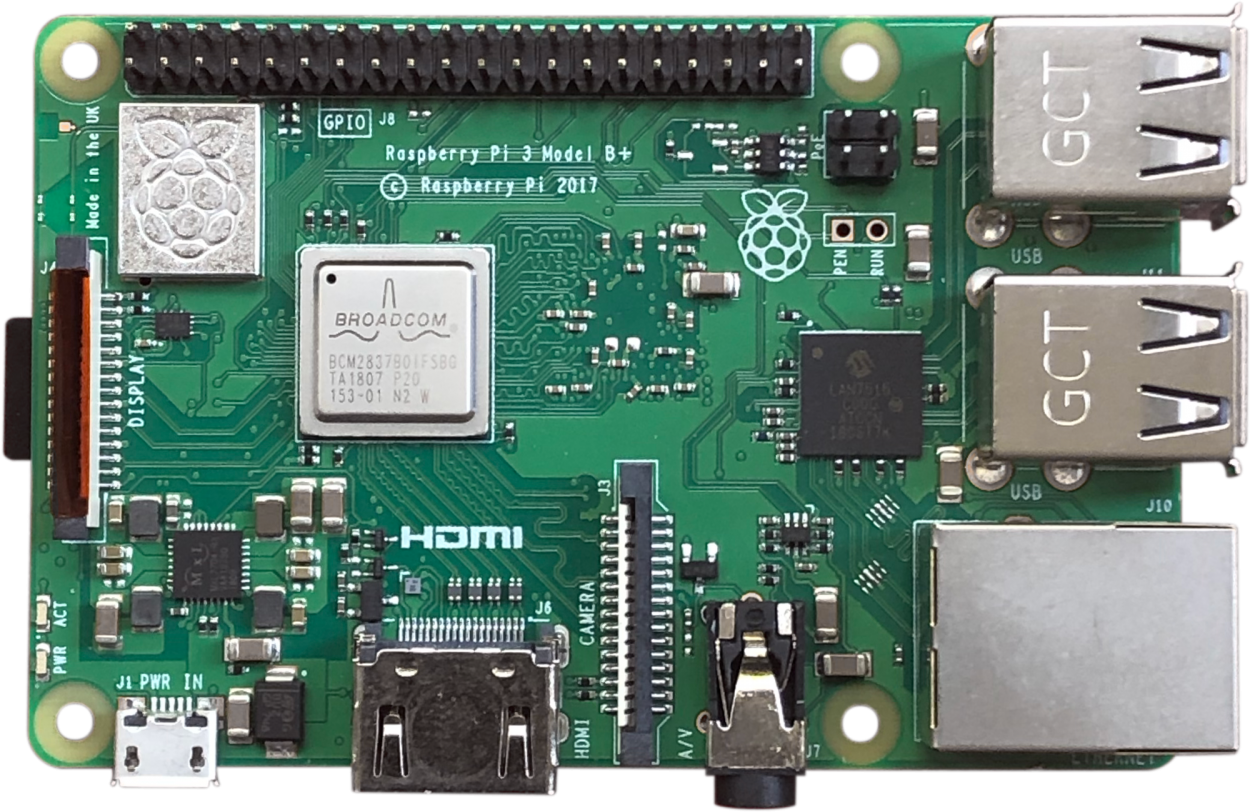
Personally, I’m working with: a 15ʺ MacBook Pro with an SD card port; a Raspberry Pi 3 Model B+; a SanDisk Ultra 16GB micro SD card with an 80Mbps read speed that came with a microSD adapter; and the charger from an old Android phone.
Glossary
Some of these tutorials are like a mini crash course in server administration. You don’t need to know much to get started and mess around, but it is useful to be aware of a few terms. If you’re unfamiliar with any of the terms used, see below for very brief explanations.
- Ansible
- An IT automation tool
- Beaker
- Primarily a browser for Dat and HTTP/S websites; also offers website seeding and other features
- booting
- The startup sequence that happens when you turn on a computer
- command line
- A text interface where you can write in commands for your computer; on a Mac, you can open the command line by firing up the Terminal application
- daemon
- A computer program that runs as a background process; most people pronounce it “DEE-muhn”
- Dat
- A peer-to-peer protocol for sharing websites, files, and other data over the internet
- Etcher
- Software that can be used to flash OS images on to SD cards or USB drives; a free and open-source Electron app developed by Balena
- flashing
- To update a drive with a new program such as an operating system
- Git
- A version control system widely used by programmers and web developers
- Homebase
- “A self-deployable tool for managing websites published with the Dat protocol”; by the Beaker team
- image
- A serialized copy of an entire computer system stored safely in a file
- IP address
- A series of numbers separated by periods that is assigned to each computer connected to a network
- mount
- Making a drive such as an SD card or an external hard drive accessible to your computer; in theory, all you should usually have to do to mount a drive is plug it in to your computer
- Nano
- A simple command line text editor; for more complex editing, emacs or vi may be preferable
- operating system (OS)
- System software that manages a computer’s software and hardware; if you compared all of the software on a computer to a house, the OS would be the foundations
- pinning
- Synonymous with seeding or hosting for Dat sites; read more in the Beaker documentation
- pip
- Python package manager
- playbook
- A defined set of scripts and variables used by Ansible for server configuration
- Python
- A programming language
- Raspbian
- The Raspberry Pi Foundation’s officially supported operating system
- root (directory)
- The top-level directory in a filesystem; if you compared the filesystem to a family tree, the root would be the oldest ancestor at the very top of the tree
- root (user)
- The user with administrative privileges; it’s a powerful user so should be kept very secure
- SD card
- A memory card often used in portable devices; SD stands for “secure digital”
- service
- With computers, a service is usually a program that runs in the background; if you were to compare a computer with a human, you might compare a service to breathing
- SSH
- A protocol for connecting to a server securely over a potentially insecure network; SSH stands for “Secure Shell”
- SSH key
- An SSH key is used to log in to SSH; it is considered much more secure than a simple username + password combo
- user
- With servers, a “user” is an account with a particular set of privileges and permissions
- wpa_supplicant
- Cross-platform software that implements WiFi security protocols including WPA and WPA2; the wpa_supplicant.conf file configures wpa_supplicant
Set up a Raspberry Pi for the first time
Flash Raspbian on an SD card using Etcher
- If you don’t already have it installed, download and install Etcher.
- Download your preferred Raspbian image as a
.zip file. If you will only be using the Raspberry Pi as a server, such as with Homebase, you may wish to go with Raspbian Lite.
- Plug your SD card in to your card reader so that it mounts on your computer.
- Flash the Raspbian image on to your SD card by opening the downloaded image in Etcher, selecting your mounted SD card, and then clicking flash. Use caution. Flashing will overwrite anything on the selected drive. If you accidentally select an external hard drive instead of your SD, you’re going to have a bad time.
- When Etcher is done, remove the SD card. It should have been unmounted as part of the flashing process, but double-check before you pull it out of the card reader.
Flashing the Raspbian image on to an SD can be done manually instead of using Etcher. For further info, see the base of the “Installing operating system images” page on raspberrypi.org.
If you want to connect the Pi to a WiFi network or enable SSH, complete those steps before booting the Pi.
Connect a Raspberry Pi to WiFi on the command line
This tutorial assumes you have flashed Raspbian on an SD card but have not yet booted the Pi. If you have already booted the Pi, see instructions on how to change the existing WiFi configuration on the command line.
Plug your SD card in to your card reader so that it mounts on your computer.
Open the command line and run:
nano /Volumes/boot/wpa_supplicant.conf
This will open a blank file using nano. Paste in the configuration below:
country=gb
update_config=1
ctrl_interface=/var/run/wpa_supplicant

network={
  scan_ssid=1
  ssid="YOUR_NETWORK_NAME"
  psk="YOUR_NETWORK_PASSWORD"
}
Be sure to change the ssid and psk values to your WiFi network name and password respectively. The country value should be set to the ISO 3166-1 alpha-2 code for the country the Pi is in.
If you are planning to use the Raspberry Pi on a few networks, you should add any other required networks to this file as so:
country=gb
update_config=1
ctrl_interface=/var/run/wpa_supplicant

network={
  scan_ssid=1
  ssid="YOUR_NETWORK_NAME_1"
  psk="YOUR_NETWORK_PASSWORD_1"
  priority = 1
}

network={
  scan_ssid=1
  ssid="YOUR_NETWORK_NAME_2"
  psk="YOUR_NETWORK_PASSWORD_2"
  priority = 2
}
When you are done editing the credentials, save the wpa_supplicant.conf file and close Nano.
If you want to enable SSH but haven’t yet done so, complete that step before you boot the Pi for the first time.
When you are ready to boot the Pi for the first time and test the WiFi connection, insert the SD card in the Raspberry Pi and plug the Pi in to a power source. Give it a minute or two, then view the devices on the network. If the Pi shows up, you’re ready to go.
If you are planning to use the Raspberry Pi as a server, such as to run Homebase, you may wish to keep it plugged in to the ethernet for a more stable connection.
Enable SSH on a Raspberry Pi
As of late 2016, Raspbian has SSH disabled by default. This is to protect users from accidentally making their Pi accessible to the internet with default credentials. This tutorial assumes you have flashed Raspbian on an SD card but have not yet booted the Pi.
Plug your SD card in to your card reader so that it mounts on your computer.
Next, open the command line and run
touch /Volumes/boot/ssh
This will create a new empty file titled ssh in the root of your SD card. This empty file will allow you to connect via SSH when the Pi is first booted.
If you get an error after running the touch command that says No such file or directory, check that your SD card has mounted correctly and check that Raspbian is installed on the SD card.
If you want to connect the Pi to a WiFi network but haven’t yet done so, complete that step before you boot the Pi for the first time.
Log in to a Raspberry Pi via SSH as the root user pi
This tutorial assumes you have already flashed Raspbian on an SD card, have enabled SSH, have connected the Pi to the internet via WiFi or ethernet, and have booted the Pi.
Open the command line and run:
ssh pi@raspberrypi.local
If this is the first time you are connecting via SSH then type in the default password raspberry. If you don’t plan to use Agorama’s Ansible playbook to configure your SSH credentials, you must change your default password by using the passwd command (read more). Keeping the default password in place and enabling SSH just invites bad guys to do shady things with your Pi.
If this is not the first time you are connecting via SSH, use the password you configured with passwd or the password you added to the Ansible playbook.
For security reasons, nothing will show on the screen while you are typing your password.
If nothing happens when you attempt to log in, your Pi may not be connected to the internet.
If you receive a Permission denied error, you will need to find the Pi’s IP address. View the devices on the network to determine the IP. Once you have the Pi’s IP address, try logging in as instructed above but replace raspberrypi.local with your Pi’s IP address. If you had to take this step, you may want to write down your Pi’s IP address for use in other steps on this page.
If you receive an error relating to the ECDSA host key changing, see the guidance below guidance below related to ECDSA errors.
Use Ansible playbook to configure Raspberry Pi server
About Agorama’s Ansible playbook
Agorama’s Ansible Raspberry server playbook automates a number of fiddly tasks that are required to get a Raspberry Pi set up as a server geared towards use with Homebase. You can get a feel for the tasks that will be performed by the playbook by browsing the files within the playbook, working backwards from all.yml.
As of late April 2019, the tasks performed by the playbook include:
- Set up user accounts and apply basic updates & security
- Prepare Raspberry Pi to run Node.js apps
- Run
nodesource.node
- Create global package directory
- Add global package directory to
.npmrc
- Add global package directory to
PATH
- Install
nginx web server
Future tasks planned for the playbook include DNS configuration and HTTPS support.
Regardless of what method you use to set up a server, and no matter where the server “lives” – on a Raspberry Pi, a DigitalOcean droplet, or anywhere else – the most important thing to remember is that it is your responsibility to keep it secure and up-to-date.
Install Ansible and get the playbook
This tutorial assumes you have Python, pip, and git installed on your computer.
Open the command line.
Install the Python packages Ansible and Passlib by running:
pip install ansible passlib
Next, clone Agorama’s ansible-raspberry-server repository:
git clone https://github.com/agoramaHub/ansible-raspberry-server.git
and change directories in to the root of that repository by running:
cd ansible-raspberry-server
Now you are ready to add your SSH credentials to this Ansible playbook and configure a Raspberry Pi.
Add your SSH credentials and timezone to the playbook
This tutorial assumes you have already set up Ansible and the playbook. It also assumes that you have set up SSH keys (see tutorial on DigitalOcean).
Open the command line and change directories to the root directory of the cloned Ansible playbook by running the command below. Replace the path with the correct path on your computer.
cd /path/to/your/ansible-raspberry-server
To add your SSH key and change the password for the root pi user, run the command:
ansible-playbook 01-auth.yml
You will be prompted to add your public key path and set a password for the root user. The default key path should be fine unless you placed your public key somewhere other than the default path when you created it. Set the password to the password you would prefer to use when you log in to the root pi user via SSH. Note that you will not need to use this password often since you are adding your SSH key, however you will need it when you first run the playbook.
When you have finished answering each prompt, the output will be saved to vars/auth.yml with the password encrypted by passlib.
To check and edit the timezone, run:
nano vars/base.yml
to open the base variables file with nano. If you need to change the timezone, edit the ntp_timezone value and save this file.
Run the playbook
This tutorial assumes you have already set up Ansible and the playbook, have configured your SSH credentials in the playbook, have flashed Raspbian, have enabled SSH, have connected the Pi to the internet via WiFi or ethernet, and have booted the Pi.
Open the command line and change directories to the root directory of the cloned Ansible playbook by running the command below. Replace the path with the correct path on your computer.
cd /path/to/your/ansible-raspberry-server
When you’re ready, run the playbook:
ansible-playbook all.yml --ask-pass
If the command fails because it cannot find the Pi, you need to change the hosts file so that the script can find the Pi via its IP address. View the devices on the network to determine the IP, then run:
nano hosts
to open the hosts file with nano. Replace raspberrypi.local with your Raspberry Pi’s IP address. You may add additional Raspberry Pi IP addresses to this file if you want to run the playbook on multiple Pis. When you are done editing, save and close this file and then run the ansible-playbook command above again.
You will be prompted for the password you added to the playbook. If your SSH key is added and you can log in successfully then the playbook will proceed to configure the Raspberry Pi, logging tasks as they are performed.
Note: if you configured a passphrase for your SSH key when you set it up, you will be asked for this as well and will be asked for it each time you connect to your Raspberry Pi via SSH in the future. See this StackExchange thread for a few suggestions on how to avoid being asked for the passphrase every time.
Run Homebase on a Raspberry Pi server
Install dat and homebase
This tutorial assumes that you have set up a Raspberry Pi and have configured it for use as a server using Agorama’s Ansible playbook or via other means. It also assumes that your configured Raspberry Pi is on and connected to the internet and that you have logged in via SSH.
For security purposes, the Ansible playbook configures worker user on Raspberry server so that we’re not using the root user pi to install and run software. When you first log in with SSH you are logged in as the root user, so we need to switch to worker by running:
sudo su worker
Next, install dat:
npm install -g dat
Test whether or not the dat installation works with the Pi configuration by running:
dat doctor
When prompted, select the peer-to-peer test and send the command it returns to a friend that has dat installed. Ask the friend to run the command. If dat doctor returns successful, then you’re all good. Disconnect from dat doctor by typing ctrl + c.
Install homebase by running:
npm install -g @beaker/homebase
Change directory to the user root:
cd
and then create a Homebase config. Run:
nano .homebase.yml
to open up the Homebase config with nano, then paste in:
dats:
  - url: dat://01cd482f39eb729cdcbb479b03b0c76c6def9cfc9cff276a564a17c99c4432f4/
  - url: dat://b0bc462c23e3ca1fee7731d0a1a2dc38bd9b9385daa413520e25aea0a26237a6/
  - url: dat://f707397e8dacc1893dced5afa285bab1715b70fe40135c2e14aac7de52f2c6bb/

directory: ~/.homebase        # where your data will be stored

# For API service. Establish API endpoint through port 80 (http)
ports:
  http: 8080                  # HTTP port for redirects or non-TLS serving
This config will set up a pinning service without DNS support that pins three Agorama-related URLs. Feel free to replace them with URLs of your choice. Save and close the file when you’re done editing.
Next, run homebase:
homebase
The response should indicate success and that your URLs from the .homebase.yml file are being pinned.
If you get an error message here or when you ran dat doctor, you may need to check the configuration of your Raspberry Pi.
Daemonize homebase with systemd
This tutorial assumes that you have set up a Raspberry Pi, have configured it with Agorama’s Ansible Raspberry playbook according to the instructions above, and have installed dat and homebase on the Pi. It also assumes that your configured Raspberry Pi is on and connected to the internet and that you have logged in via SSH.
Daemonizing homebase means that it will constantly run in the background as long as the service hasn’t failed, the server is on, and the server is connected to the internet. This is important because the whole point is that we want the Dat sites specified in .homebase.yml to run in perpetuity.
First, add a service configuration for homebase. As the root user pi, run:
nano /etc/systemd/system/homebase.service
to open a new file with nano. Paste in:
[Unit]
Description=homebase

[Service]
Type=simple
ExecStart=/usr/bin/env .npm-packages/bin/homebase
WorkingDirectory=/home/worker/
Restart=on-failure
StandardInput=null
StandardOutput=syslog
StandardError=syslog
Restart=always
SyslogIdentifier=homebase
User=worker
Group=worker

[Install]
WantedBy=multi-user.target
This configuration file indicates (amongst other things) which user will run the service, where to find homebase, and whether or not to restart when the system is rebooted.
To start the service, run:
sudo service homebase start
To stop the service, run:
sudo service homebase stop
To read the logs, run:
journalctl -u homebase
If the service is running and is working as it should, you should be able to visit any of the URLs you added to your .homebase.yml config file in Beaker Browser.
NOTE
A few friendly folks have suggested pm2 for daemonizing Homebase (see Twitter thread). This is also what is suggested in the Homebase readme, and it’s what I used previously when getting Homebase set up on DigitalOcean. It worked great for me, but this time round we used systemd because two people at the workshop had rough experiences using pm2 with Homebase on a Raspberry Pi. I think it had something to do with a crazy amount of memory usage? Not 100% sure, I think we may cover this in a future workshop.
Related tasks, troubleshooting, and edits
Useful commands
These are very basic examples of some useful commands. Have a search online for more powerful examples.
To change directory:
cd preferred/directory
To list the files in a directory (omit directoryname if you want to list the files in the current directory):
ls directoryname
To display the contents of a file:
cat filename
To edit a file using nano (the file will be created in the current directory if it doesn’t exist):
nano filename
To reboot a Raspberry Pi, be sure you are connected via SSH as the pi root user and then run:
sudo reboot
To disconnect from an SSH session, type ctrl + d
It isn’t a great idea to just pull the plug on a Raspberry Pi to turn it off since it can cause problems with your SD card or the file system. To shut down a Raspberry Pi:
sudo shutdown -h now
View all devices connected to a network
It can be useful to view all devices connected to a network if you want to check your Raspberry Pi’s WiFi connection or need to identify its IP address.
You can use your router’s admin interface, the mobile app Fing, or the network scanning tool nmap to view a list of the devices connected to your network.
If you are trying to find a Raspberry Pi’s IP address and there are a lot of devices connected, you may need to use the list of devices and the process of elimination (i.e. turn devices on and off and see what disappears).
If the SD card will not mount
If you plug in an SD card and it will not mount, try to use your system tools such as Disk Utility to check for the drive. If that doesn’t work, try restarting your computer. If that doesn’t work, try different hardware such as a friend’s computer or an external card reader. I know at least four people with Macbook Pros that have dealt with defective card reader ports.
Fixing ECDSA error triggered at SSH login when a Raspberry Pi has been connected to a new network
If you added your SSH key using Agorama’s Ansible Raspberry playbook and then move your Pi on to a new network, you will probably receive an error relating to the ECDSA host key changing. The base of the warning message should indicate that you can fix this by adding the correct host key in ~/.ssh/known_hosts.
One way to resolve this is to re-add your SSH credentials to the Ansible playbook and then run the playbook so that your SSH keys are added again.
Changing the WiFi configuration for an existing Raspberry Pi on the command line
If you did not add your new network to your wpa_supplicant.config file when you first set up WiFi on your Pi, you will need to add your new network to this file.
If your Raspberry Pi does not have an ethernet port, it may be easiest to start from scratch (flash Raspbian on to the SD card and configure the wpa_supplicant.conf file).
If your Raspberry Pi has an ethernet port, connect it to the network via ethernet. Open the command line and connect via SSH, then run:
sudo nano /etc/wpa_supplicant/wpa_supplicant.conf
This will open up the wpa_supplicant.conf with nano. Scroll down the file and edit the network details as per the WiFi connection instructions above.
When you are done editing, save and close the file then disconnect your Raspberry Pi from the ethernet. To test the connection, check for the Raspberry Pi by viewing all of the devices connected to the network. If the Pi is not connected after a couple minutes, try rebooting the Raspberry Pi.
List of edits
- 03.03.19 – Added note about
pm2 to “Daemonize homebase with systemd” tutorial
Next steps include configuring HTTPS support, DNS support, and getting more familiar with the maintenance involved in this setup. I think there is also some complication involving DMZ and routers, but I’m very unfamiliar with those implications at this point. I have a feeling we’ll dig in to a lot of this during the upcoming Agorama Server Co-op evenings and workshops. See the Agorama site and their Twitter account for dates.
Thanks to the Agorama folks – organisers and fellow attendees – for a very fun workshop.